Configuring Request Data Commands
For each eligible device the Request Data command resolves to, the service will request the data within the specified time range.
See FMS Commands and Request Data for more information about this command.
See Scheduling FMS Command Tasks in the MSS for more information about scheduling commands.
See FMS ActiveX Controls and CxHmiFms for more information about using commands via FMS ActiveX controls on CygNet Studio or CygNet Vision screens.
See CxFms for more information about scripting commands.
See Retrieving Event and Alarm Data in CygNet Measurement for a special note about retrieving event and alarm data.
Configuring a Request Data Command
To Configure a Request Data Command
- Open the Command menu in FMS Explorer.
- Click Manage to access the FMS Command Definitions dialog box and then click Add to access the Create New FMS Command Definition dialog box.
|
Create New FMS Command Definition |
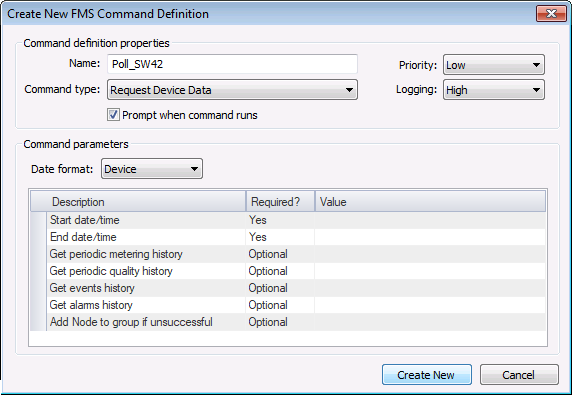
- Define the command definition properties.
- Type a Name for the command into the text box. Maximum character count is 50.
- Select the Command type from the drop-down menu.
- Select a processing Priority from the drop-down menu.
- Select a Logging level from the drop-down menu, to determine the level of logging details reported when viewing command logs. Options include Low, Medium, and High. See Viewing Command Logs for more information.
- Click to select/clear the check box to Prompt when command runs.
- Define the command parameters. The parameters for a Request Data command are described in the Command parameters box, which includes the Description, a Required indicator, and a configurable Value field. Set the value for each required and each desired optional parameter, as indicated in its Value field.
- Click Create New. The new command will appear in the list of FMS Command Definitions.
Command Definition Properties
The following command definition properties apply to Request Data commands.
| Property | Description |
|---|---|
|
Name |
Type in a Name for the new command. |
|
Command type |
Select the desired Command type from the drop-down menu. See FMS Commands for more information about available command types. |
|
Priority |
Select a processing queue Priority for the command from the drop-down menu. Options from least to greatest priority are as follows.
Default value is Low level processing queue priority. |
|
Logging |
Select a Logging level for the command results from the drop-down menu. Options are as follows.
Default value is Low level logging when scheduling a command in the MSS. Default value is High level logging when creating or running an ad-hoc command in FMS Explorer. |
|
Prompt when command runs |
Click to select/clear the check box to Prompt when command runs. Selecting this option means you will receive a prompt asking if you want to modify the parameters before the command is executed. |

Command Parameters
The following command parameters apply to Request Data commands when creating or editing commands via FMS Explorer.
| Description | Value |
|---|---|
|
Date format |
Select the desired date format from the drop-down menu. Options are as follows.
Default value is Device time. |
|
Start date/time |
The beginning of the time range for which to request data Click ... to access the Select Date and Time dialog box. See Selecting Date and Time for more information. See Note below this table. This parameter is required. |
|
End date/time |
The end of the time range for which to request data Click ... to access the Select Date and Time dialog box. See Selecting Date and Time for more information. See Note below this table. This parameter is required. |
|
Get periodic metering history |
If used, will request the primary periodic metering history records within the time range Options are Yes or No. This parameter is optional. Default value is Yes. |
|
Get periodic quality history |
If set and configured in the device properties, will request the periodic quality history records within the time range Options are Yes or No. This parameter is optional. Default value is Yes. |
|
Get events history |
If set and configured in the device properties, will request the event records within the time range Options are Yes or No. This parameter is optional. Default value is Yes. |
|
Get alarms history |
If set and configured in the device properties, will request the alarm records within the time range Options are Yes or No. This parameter is optional. Default value is Yes. |
|
Add Node to group if unsuccessful |
If used, enter the name of a valid general group Node to which to add a device Node if its data poll does not succeed. This facilitates future polling by providing a group containing the device Nodes for which the data request was unsuccessful. See Creating General Group Nodes for more information. Notes:
This parameter is optional. |
Note: When using relative (rather than absolute) date/time, if both the start and end date/time have hour, minute, and second values of 00 (or if both are set to midnight), an additional day will be added to the date at the end of the range. This occurs because the service assumes the start of the day for the starting date/time and the end of the day for the ending date/time in these circumstances. Therefore requesting a time range from T to T will yield one day of data, and from T-1 to T will yield two days of data. If only one day of data is desired when using relative date/time, the start and end date/times must therefore be the same. If any of the start or end date/time hour, minute, or second values are specified as a value other than zero (or midnight) however, the range will be used as specified.
Editing or Deleting a Request Data Command
See Managing Node Commands for information about editing or deleting this command.
Running a Request Data Command
See Running Node Commands for information about running this command.

